 |
All in One Benchmark 1.0.0
Run Benchmarks in Unreal
|
|
All in One Benchmark 1.0.0
Run Benchmarks in Unreal
|
Instead of manually managing benchmarks the plugin als offers a way to store all relevant configurations in Data Assets.
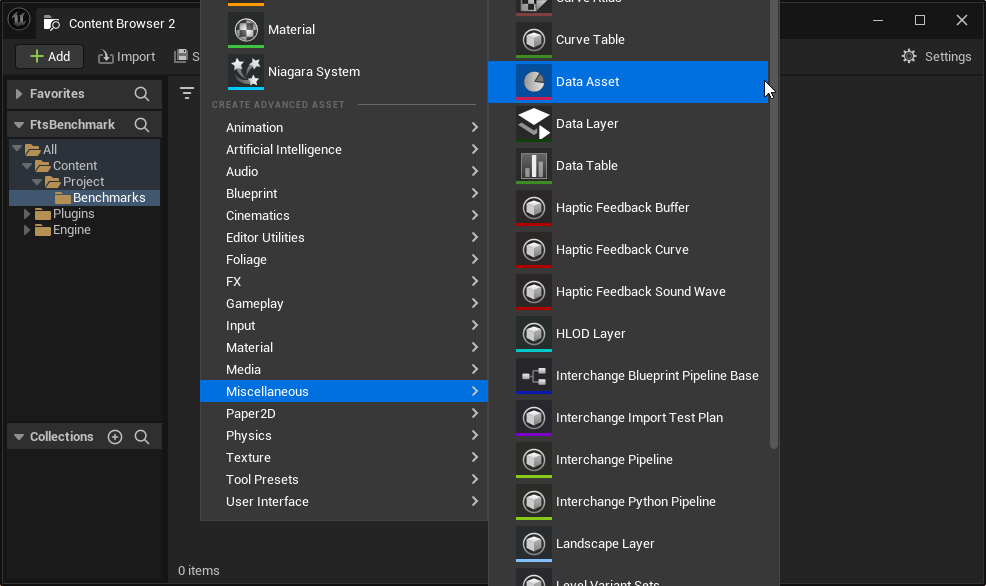
First create a new Data Asset, by right-clicking in the content browser and choosing Miscellaneous -> Data Asset
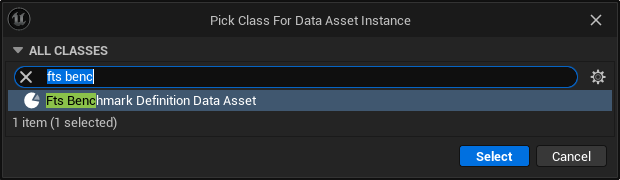
When picking the Data Asset Class, choose Fts Benchmark Data Asset
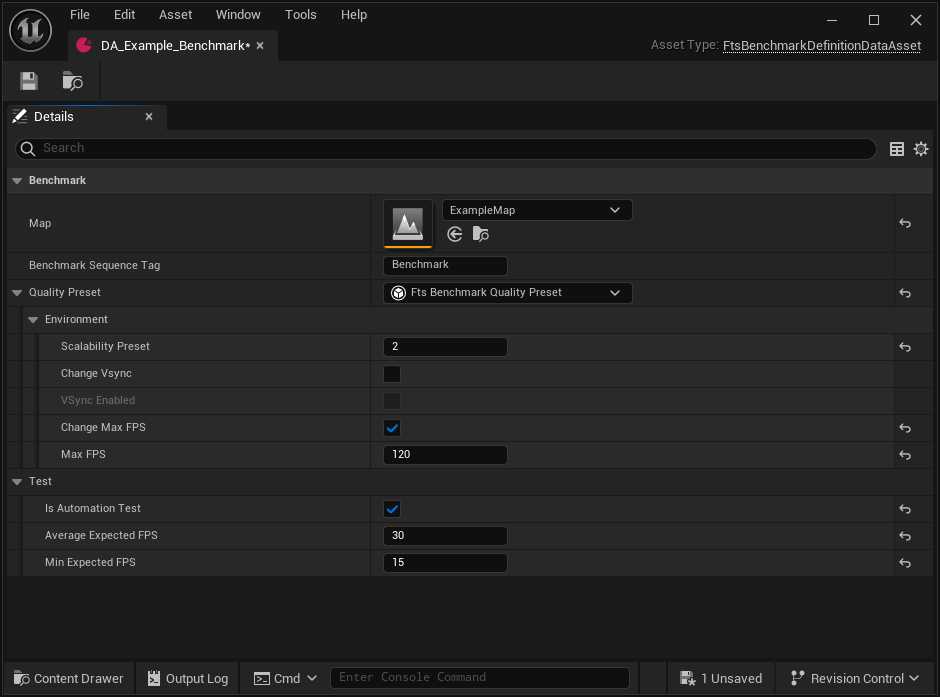
The Benchmark Asset looks like this:
| Property | Description |
|---|---|
| Map | Level to load for this benchmark (This only happens when using the Batching System) |
| Benchmark Sequence Tag | Tag of the level sequence to play for this benchmark |
| Quality Preset | An optional quality preset to be applied before the benchmark starts |
| Is Automation Test | Toggles this benchmark to be considered for Automation Tests |
| Average Expected FPS | If using automated testing, the test will fail if the average measured FPS is below this threshold |
| Min Expected FPS | If using automated testing, the test will fail if the lowest measured FPS is below this threshold |
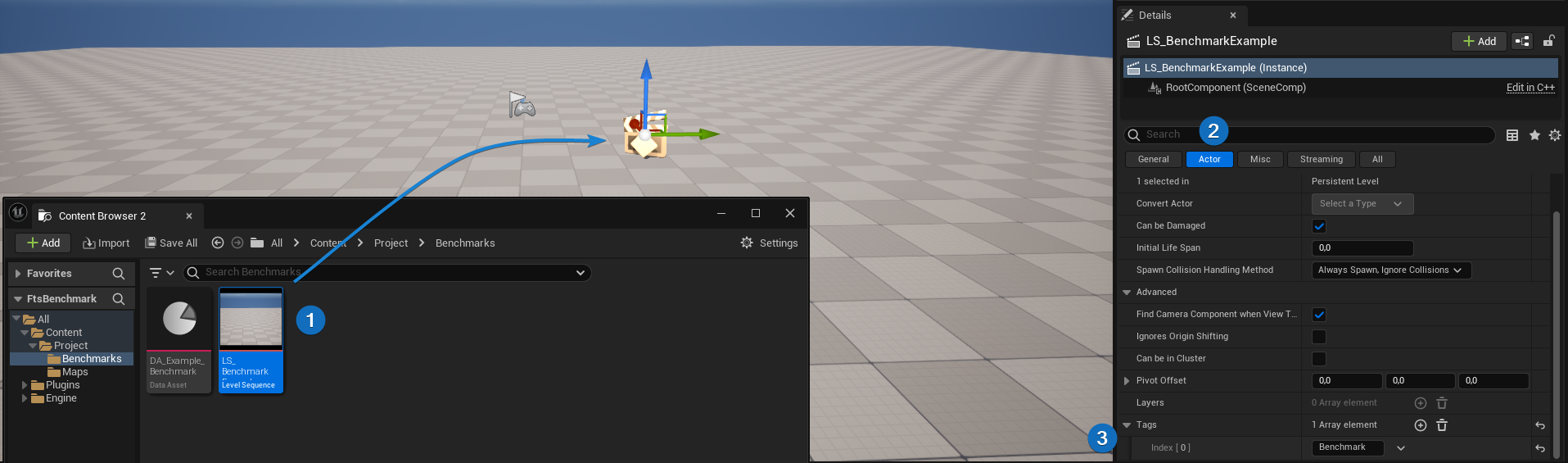
To make sure the asset can actually play the level sequence, place it in the Level (1), go to Details -> Actor (2) and add the tag named in the configuration (3).
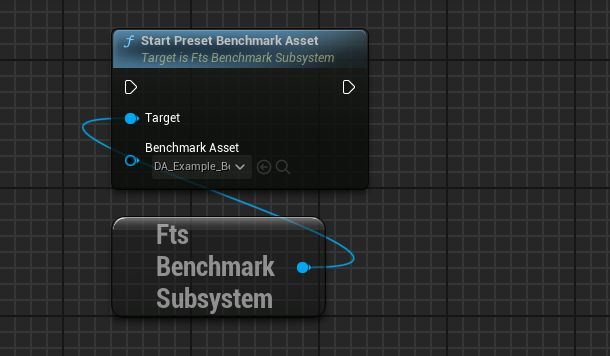
To start a benchmark asset, make sure the map is loaded and call the Start Benchmark Preset Asset function during gameplay.
Benchmark assets can be referenced as primary assets. (Which is required for the Batching System)
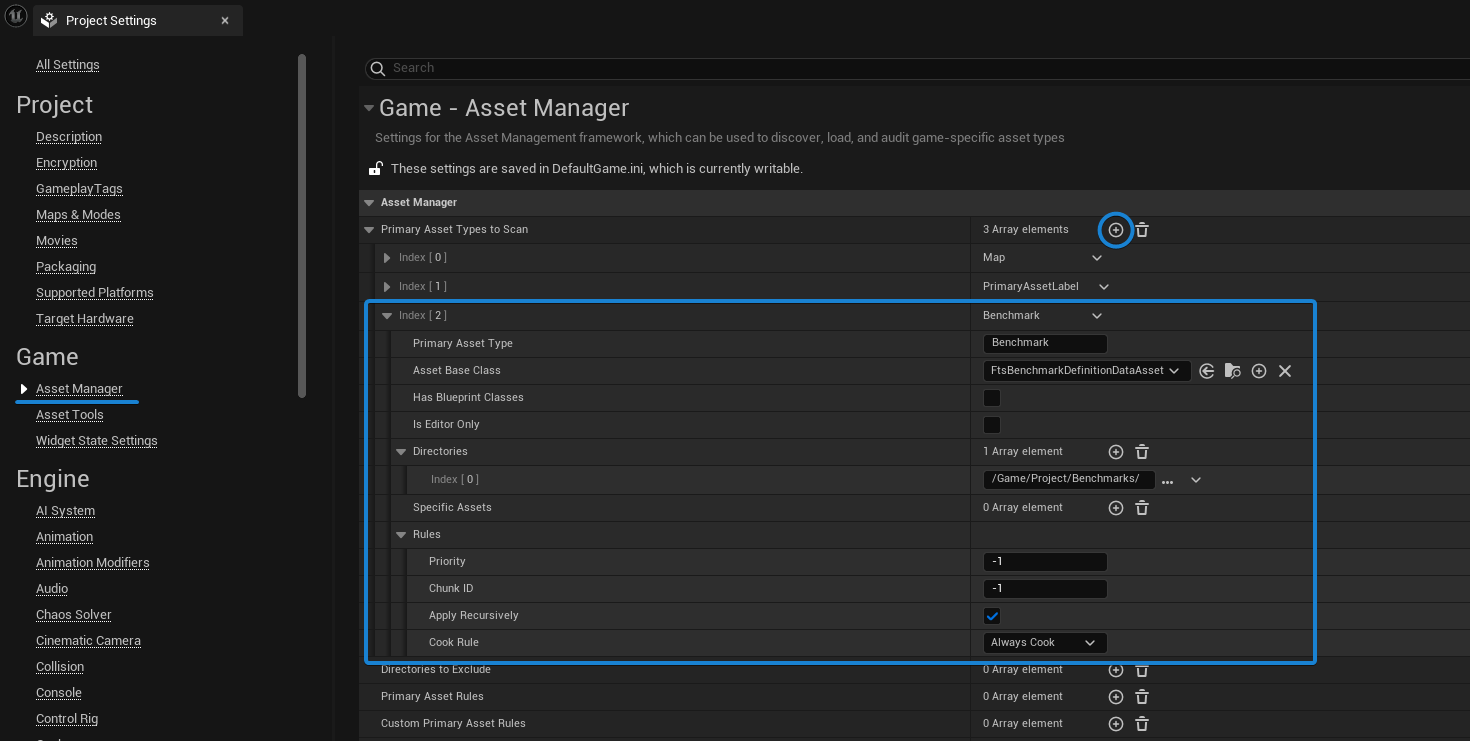
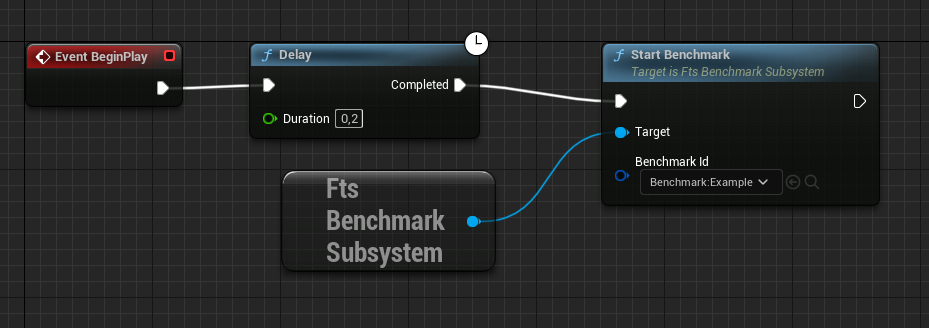
Once set up a restart may be required for Unreal to register the new asset type. Afterward the benchmark can be started with the Start Benchmark call of the system.
 1.15.0